CCM Privacy Findings
Overview
The Privacy Findings tab provides a centralized view of all privacy-related technologies detected during a website scan. While cookies are a common method used for tracking and data collection, many technologies collect or transmit information without creating cookies.
Privacy Findings helps identify and manage these technologies, including trackers, tag managers, pixels, fingerprinting technologies, CNAME cloaking, and other network-based data collection mechanisms. This allows organizations to understand how user data is collected, shared, or processed across their websites, even when no cookies are present.
A third-party analytics script may collect device information or page interaction data through network requests without setting any cookies. Such technologies are displayed in the Privacy Findings tab, so they can be reviewed and managed as part of privacy compliance activities.
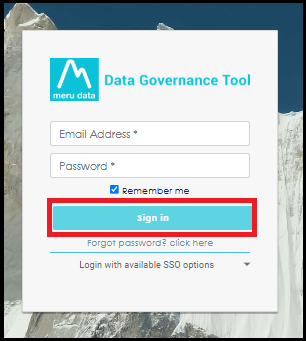
- Login to the Data Governance Tool by entering your credentials.
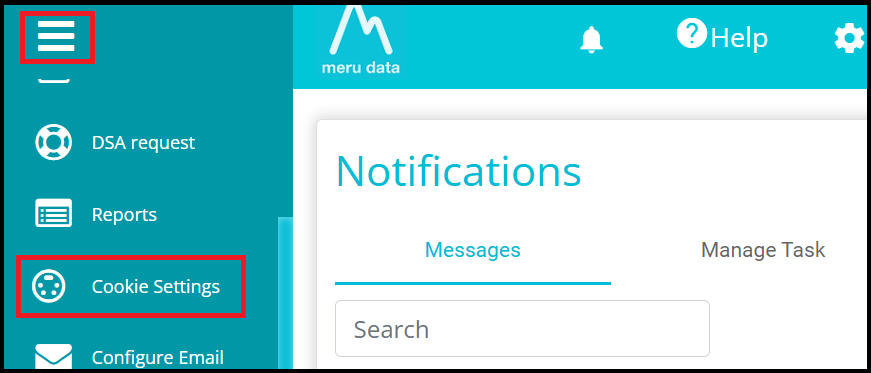
Click on the hamburger menu (three horizontal lines).
Navigate to Cookie Settings from the left-hand menu.
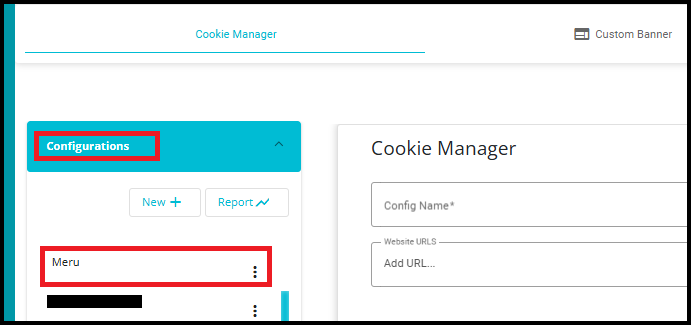
- In the Configurations section, click on any existing configuration.
- After selecting a configuration, click the Go To Scan button.

- Alternatively, click the three-dot (More Actions) menu next to the configuration name and select Scan and Autoblock.
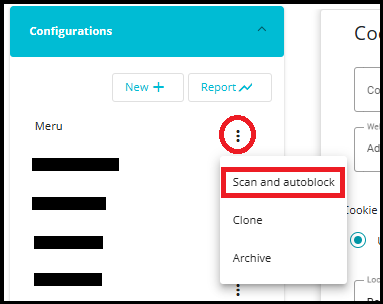
Whether you click Go To Scan or select Scan and Autoblock from the More Actions (three-dot) menu, the system navigates you directly to the Cookie Scanning and Auto Blocking page associated with the selected configuration.
On the Cookie Scanning and Auto Blocking page, click the Privacy Findings tab.

- The URL dropdown displays the website URL associated with the current scan and privacy findings. It allows users to select and view privacy findings for a specific scanned URL when multiple URLs are available within the scan results.
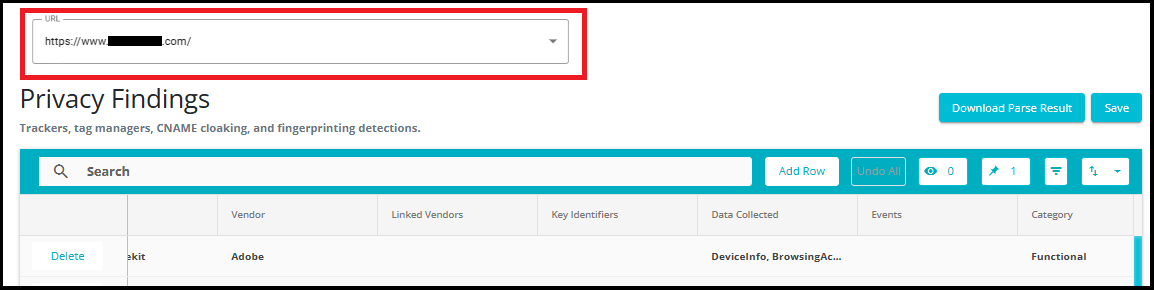
The Privacy Findings grid displays all privacy-related technologies detected for the selected URL, including trackers, tag managers, fingerprinting technologies, and other data collection mechanisms. It provides a centralized view for reviewing, managing, and updating privacy findings identified during a scan.
Search: Quickly locate specific findings using keywords.
Add Row: Manually create a new privacy finding record.
Undo All: Revert any unsaved changes made in the grid.
Visible Columns: Select which columns should be displayed in the grid. This allows users to focus on relevant information and hide unnecessary columns.
Pinned Columns: Pin important columns to the left side of the grid so they remain visible while horizontally scrolling through records.
Filter and Sort: Refine the displayed records and organize data as needed.
Export: Export the displayed privacy findings for offline review and reporting. Supported export formats include Excel (.xlsx) and CSV (.csv).
Delete: Remove an existing privacy finding from the grid.
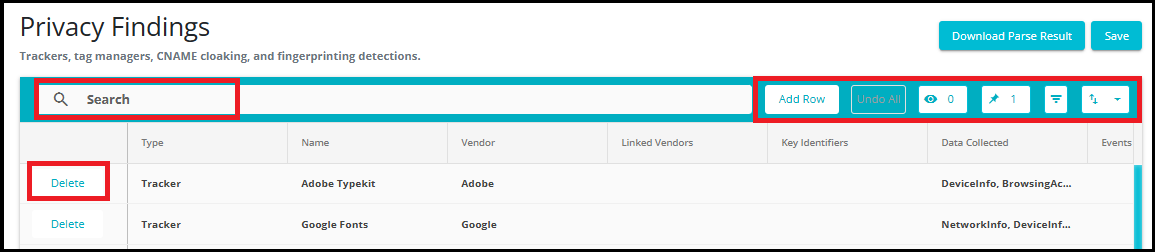
Grid Columns
- Type: Displays the type of privacy technology detected.
Examples: Tracker, Tag Manager, CNAME Cloaking, Fingerprinting Technology, Pixels
- Name: Displays the name of the detected technology or service.
Examples: Adobe Typekit, Google Fonts
- Vendor: Identifies the vendor associated with the privacy finding.
Examples: Adobe, Google
Linked Vendors: Displays additional vendor relationships associated with the finding, if applicable.
Key Identifiers: Shows unique identifiers used to recognize the tracker or technology, such as script names, domains, cookies, or network requests.
Data Collected: Lists the categories of data that may be collected by the detected technology.
Examples: Device Information, Browser Information, Network Information, IP Address
Events: Displays events or actions that trigger data collection.
Category: Indicates the privacy category assigned to the finding.
Examples: Functional, Analytics, Advertising, Social Media

- Subcategory: Displays the specific classification of the detected technology within its broader category. This helps users understand the functional purpose of the detected service.
Examples: Utilities, Hosting, Analytics Services, Advertising Networks.
Note: After a scan is completed, detected privacy findings are matched against the Ghostery database. The category and subcategory displayed in the Privacy Findings grid are derived from Ghostery's classification of the identified technology, vendor, tracker, script, or network resource. This helps provide a standardized classification for privacy-related technologies across websites.
Domain: Displays the primary domain associated with the detected tracker, script, or service. The domain helps identify the source from which the privacy-related resource is loaded.
Description: Provides a brief description of the detected technology, vendor, or service and its intended purpose.
Contact: Displays the vendor's contact or privacy-related information URL, allowing users to obtain additional details about the service provider.
Country: Displays the country associated with the vendor or service provider.
Website URL: Displays the official website URL of the detected vendor or service. This enables users to quickly identify and review the organization associated with the privacy finding.

Privacy Policy URL: Displays the privacy policy link associated with the detected vendor or service provider. This allows users to review the vendor's data processing and privacy practices.
URLs: Displays the number of unique resource URLs associated with the privacy finding. This helps users understand how many URLs were involved in detecting the tracker, script, or technology.
Page URLs: Displays the number of scanned pages where the privacy finding was detected. This helps determine the prevalence of a tracker or technology across the website.
Detection Methods: Displays the techniques used by the scanner to identify the privacy finding. Multiple detection methods may be displayed when a finding is identified through more than one mechanism.
Resource Types: Displays the resource type associated with the detected privacy technology. This information helps users understand the technical implementation of the detected service.
Example:
Google Fonts may appear as a stylesheet resource.
An analytics tracker may appear as a script resource.
- Last Updated On: Displays the date and time when the privacy finding was last modified, refreshed, or updated within the system.
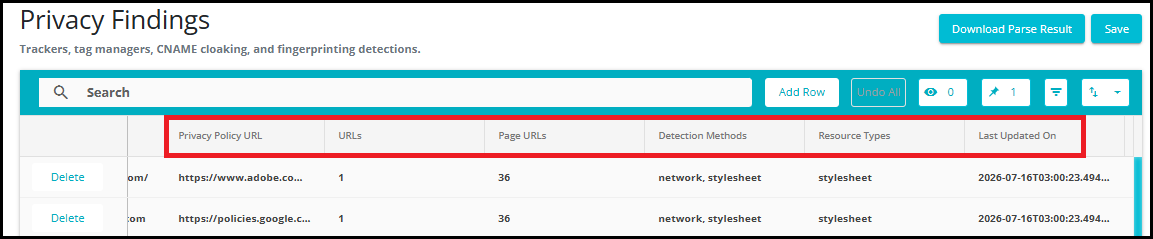
Note: Privacy Findings currently do not support version management. When a privacy finding is reclassified or updated, the system displays the latest available data, including both previously detected information and any newly updated classification details. Historical versions of privacy findings are not maintained at this time.
Download Parse Result: The Download Parse Result button allows users to download the parsed privacy findings generated from the scan.
The downloaded file contains the privacy-related technologies and metadata identified during the parsing process.
Save: The Save button commits any changes made within the Privacy Findings grid.
Use Save after performing actions such as:
Adding a new privacy finding using Add Row
Updating existing privacy finding details
Modifying vendor information
Updating categories or classifications
Editing Privacy Policy URLs
Deleting findings
Making any other grid changes

Future Enhancement: Version support for Privacy Findings is planned for a future release. Once implemented, users will be able to view and manage different versions of privacy finding classifications separately.